
Simulator guide · Oshawa and Belleville
Bravo
How to start a game on the Bravo simulators: launch BravoGolf, add players as guests, choose a course or the driving range, and place one ball on the tee.
Get started
Open BravoGolf and add each player as a guest.
- 01
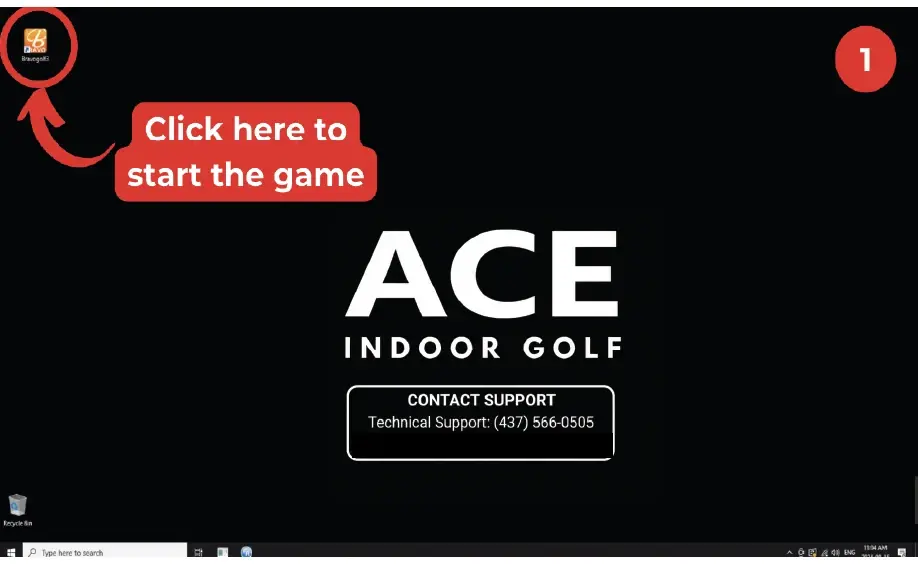
Start BravoGolf
On the bay computer, click the BravoGolf icon in the top-left corner of the desktop.
- 02
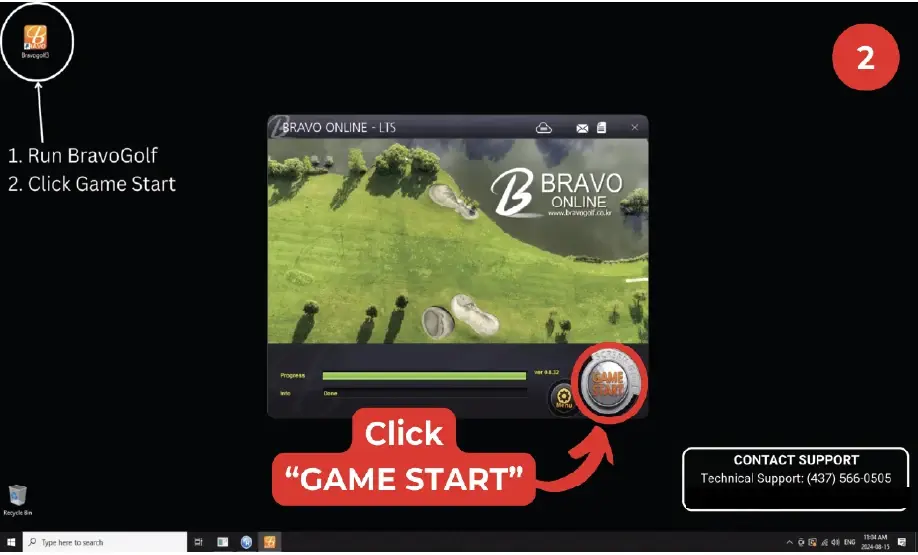
Click Game Start
When the Bravo Online window opens, click GAME START.
- 03
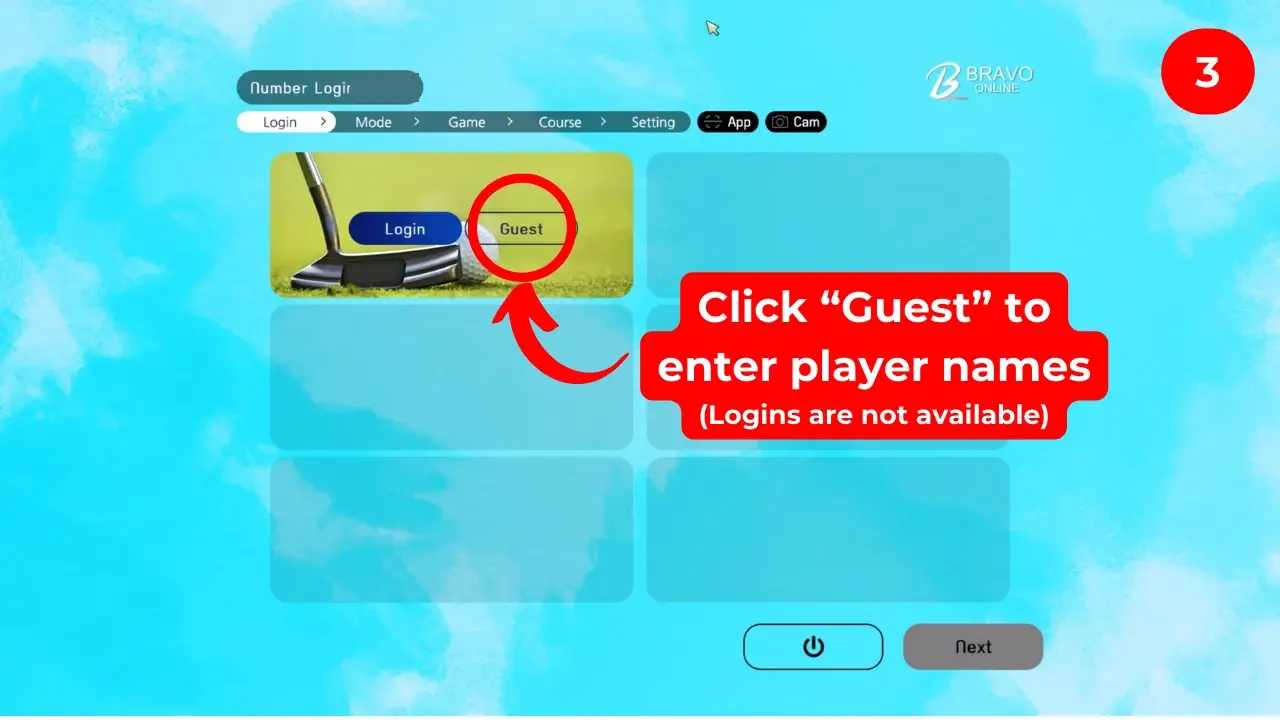
Choose Guest
Click Guest to enter a player. Member logins are not available.
- 04
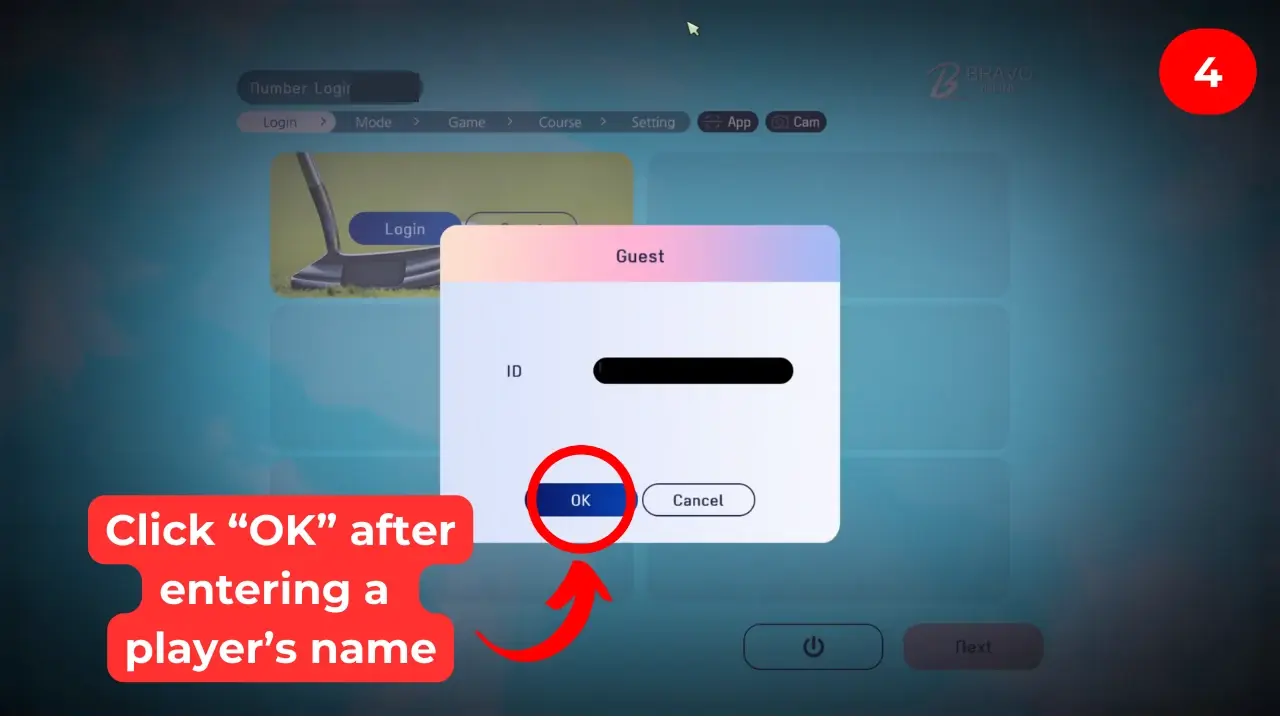
Enter a name
Type the player's name and click OK.
- 05
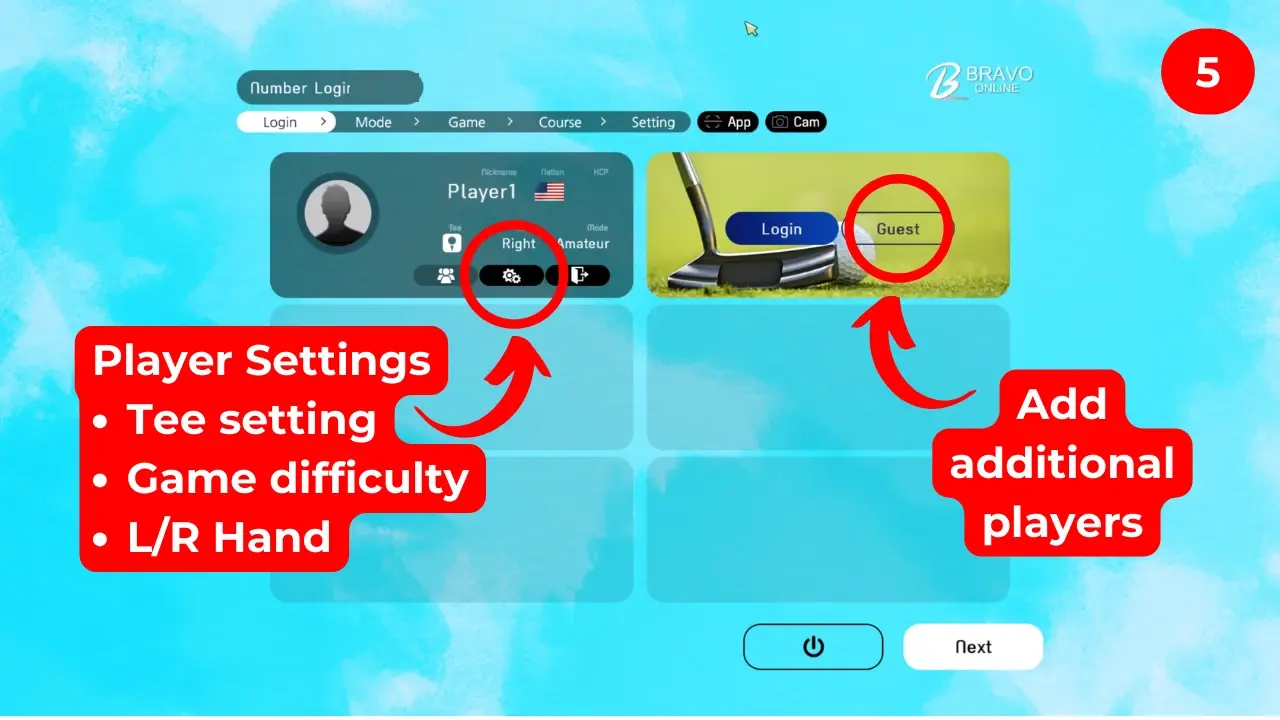
Player settings and more players
Click the gear icon to set the tee, game difficulty and left- or right-handed play. Click Guest in an empty slot for each extra player.
Choose a game
- 06
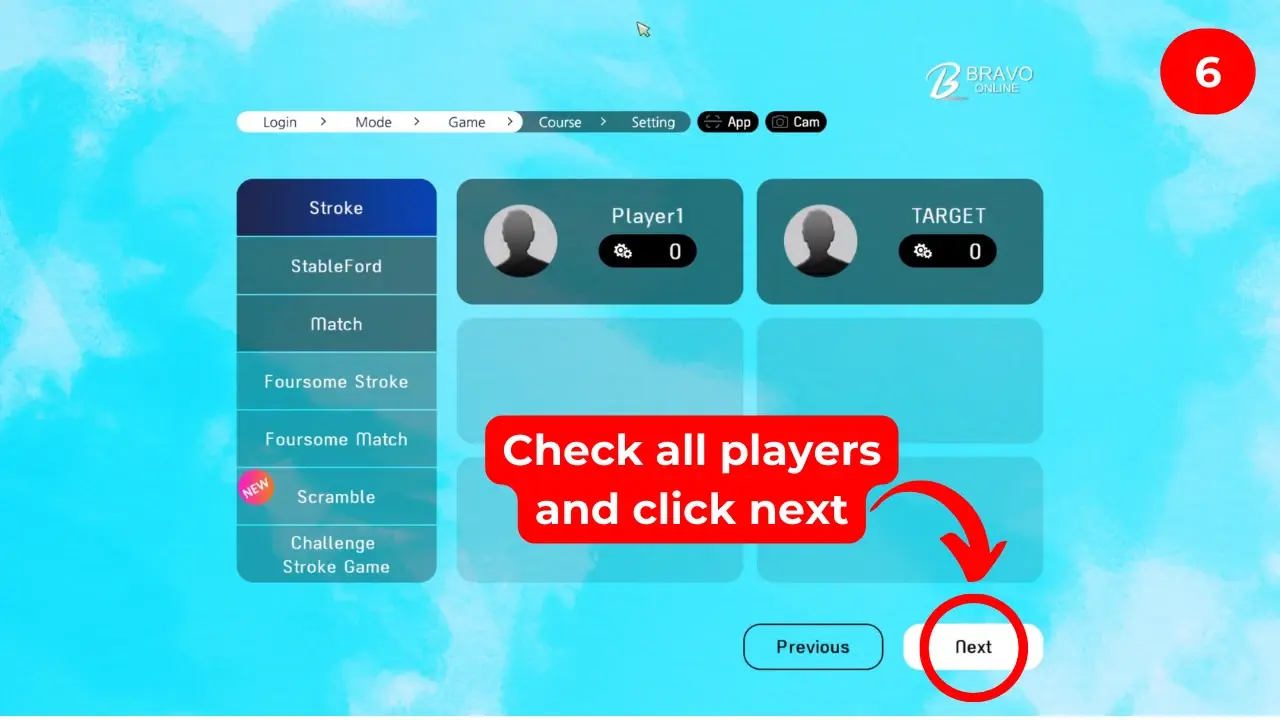
Check the players
Make sure everyone is listed, then click Next.
- 07
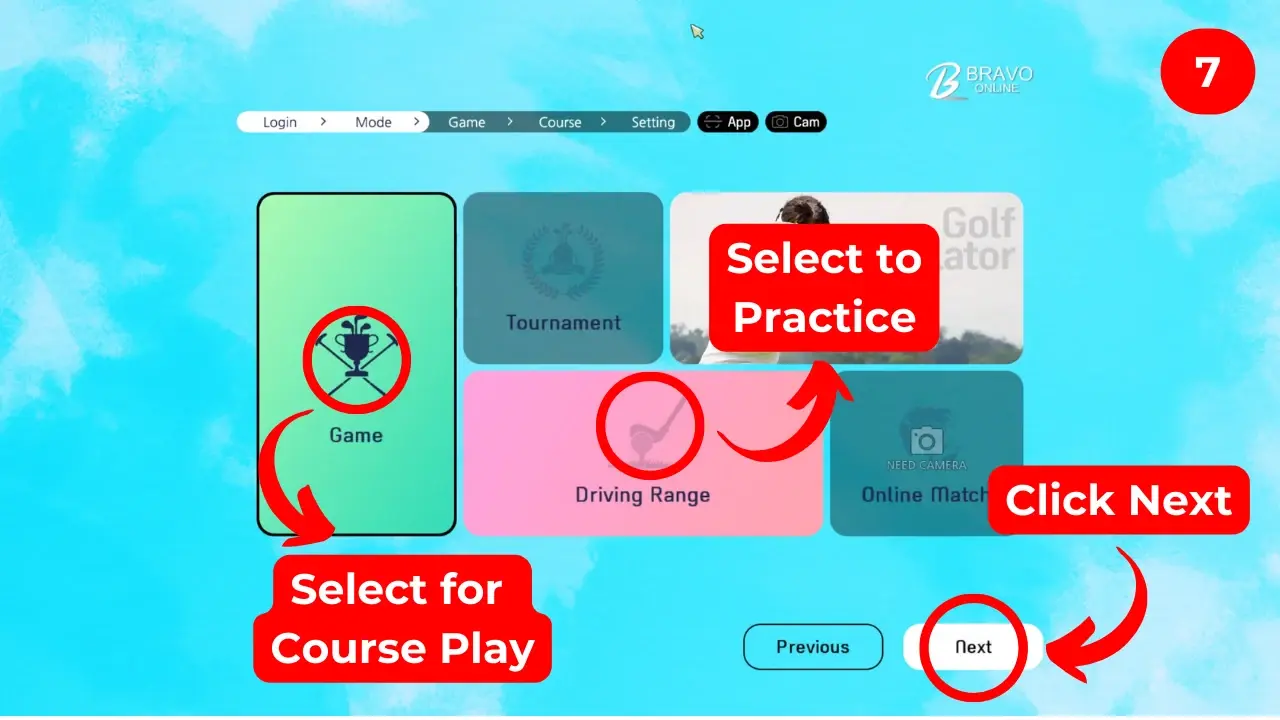
Round or driving range
Choose Game to play a course, or Driving Range to practise, then click Next.
- 08
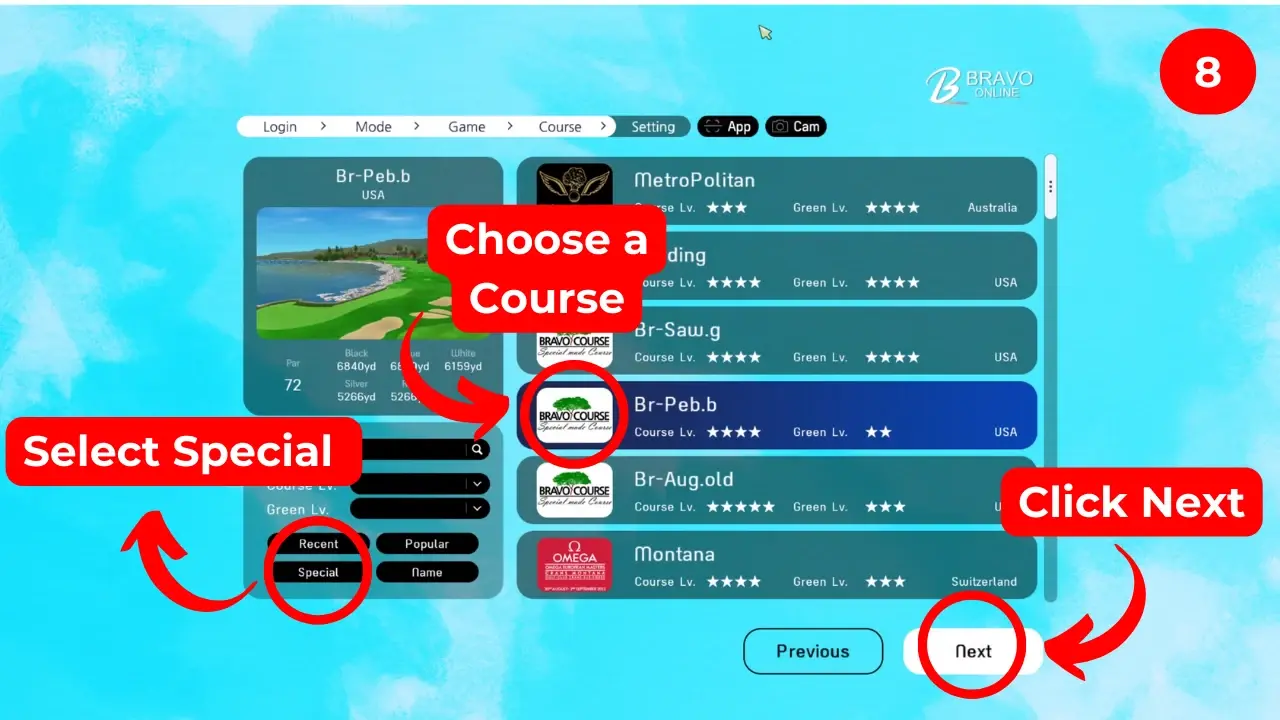
Pick a course
Choose a course from the list — the Special filter shows the specially made courses — then click Next.
- 09
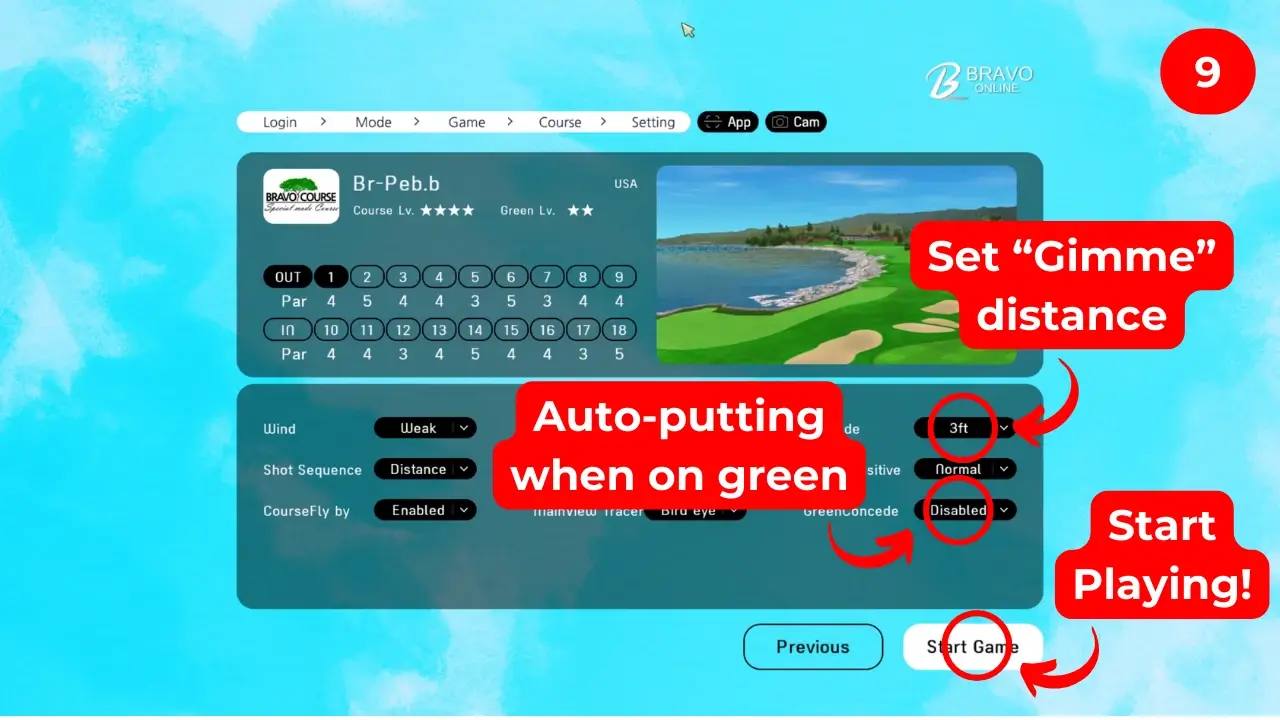
Set up and start
Set the gimme (concede) distance and whether putts are conceded automatically on the green, then click Start Game.
At the mat
- 10
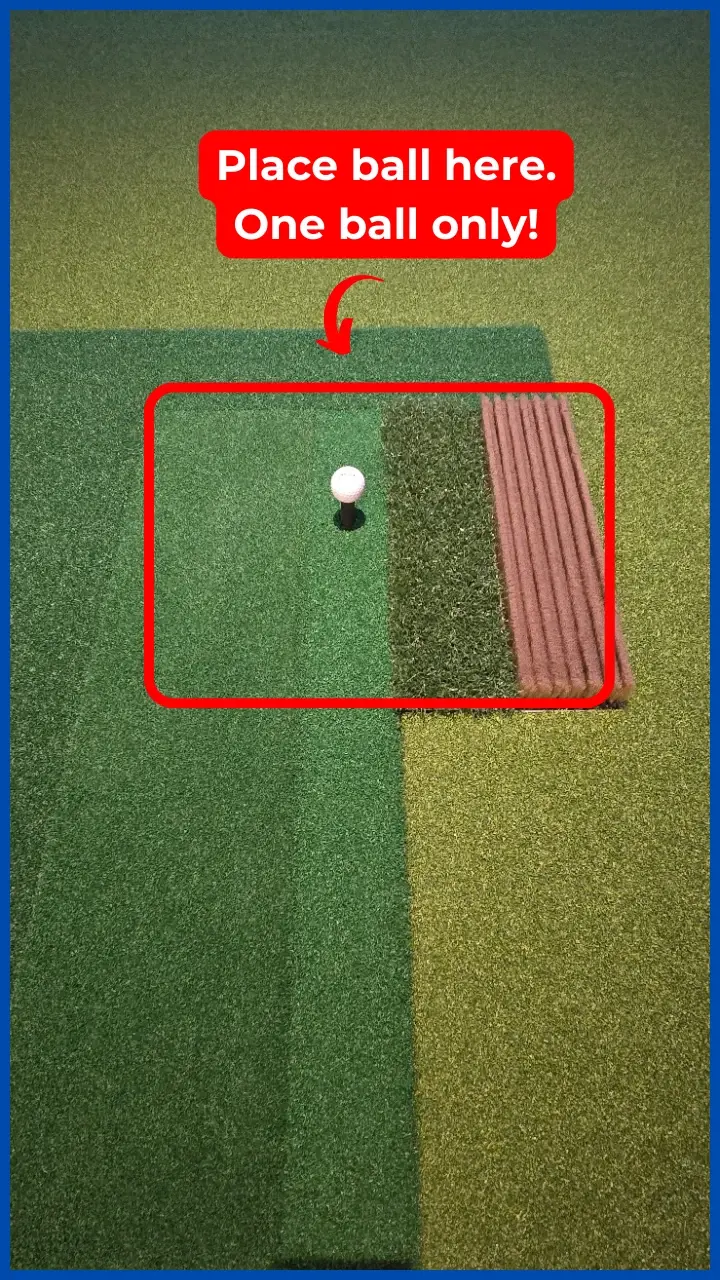
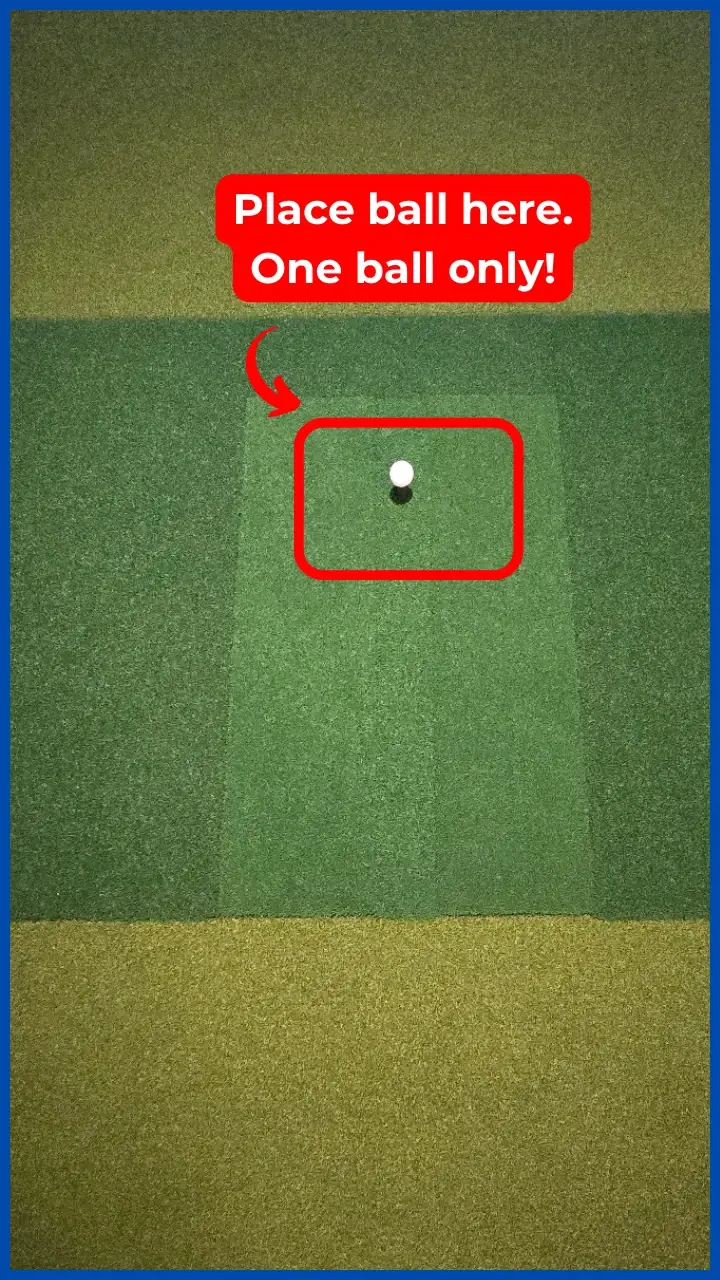
Place one ball on the tee spot
Put a single ball on the marked spot on the hitting mat. Only one ball at a time.
Stuck at the screen?
Call (437) 566-0505 during support hours (9:00 AM – 9:00 PM daily) and we will talk you through it. The bays themselves are open 24 hours.