
Simulator guide · Pembroke and Trenton
GTR Pro
How to start a game on the GTR Pro simulators: open the launcher, add players as guests, then play a course or use the practice range.
Get started
Every game starts the same way: open the launcher, pick Pro mode and add your players.
- 01
Open the GTR Launcher
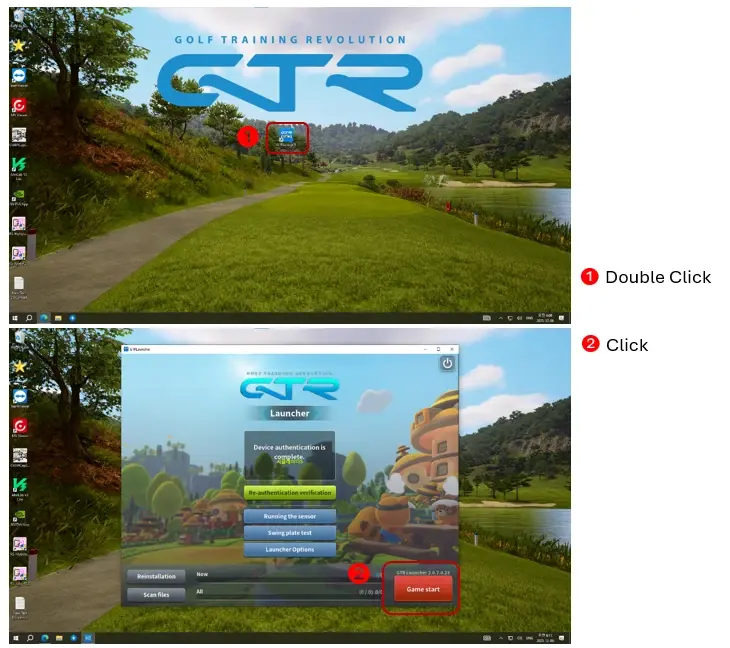
On the bay computer's desktop, double-click the GTR Launcher icon. When the launcher window opens, click Game start.
- 02
Choose Pro mode
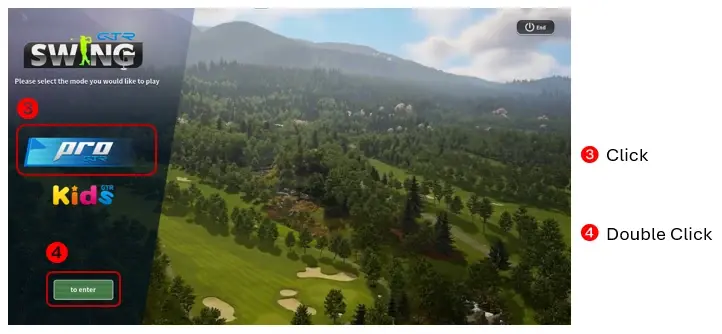
On the mode screen, click PRO, then double-click to enter. There is also a Kids mode.
- 03
Log in as a guest and add players
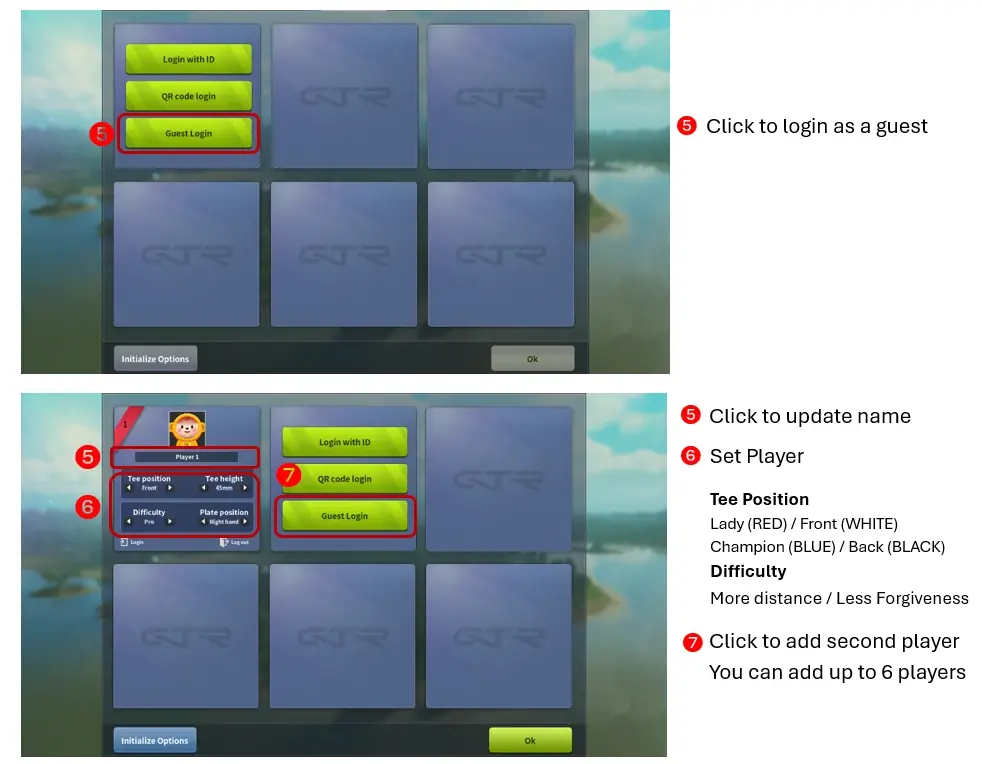
Click Guest Login. Click the player name to change it, then set the tee position and difficulty. To add another player, click Guest Login again — up to six players can play. Click Ok when everyone is in.
- Tee positions: Lady (red), Front (white), Champion (blue), Back (black).
Play a round
- 04
Choose Stroke and pick a course
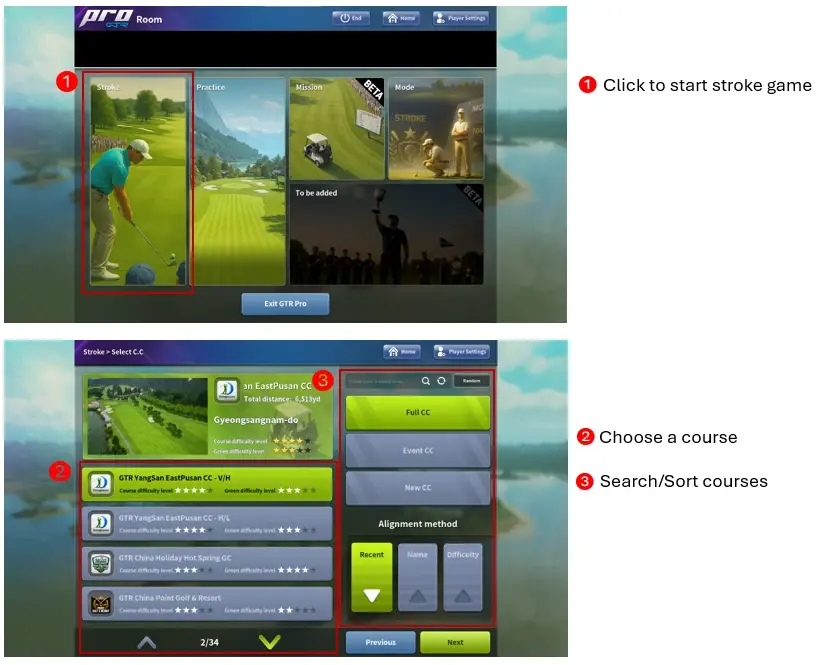
In the Room screen, click Stroke. Choose a course from the list, or use the search and sort options on the right to find one, then click Next.
- 05
Set up the round
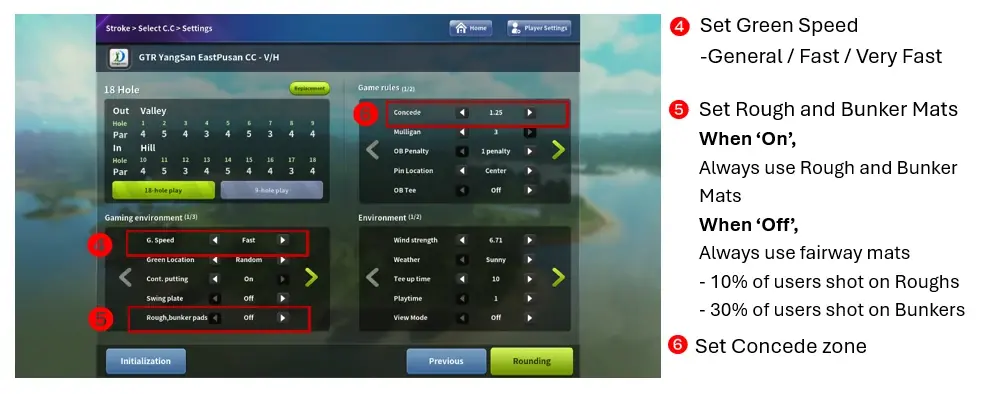
Choose the green speed (General, Fast or Very Fast) and the concede distance, then click Rounding to tee off.
- Rough and bunker pads — On: shots from the rough or a bunker are played from the matching mats. Off: every shot is played from the fairway mat.
Practise on the range
- 06
Choose Practice and a range
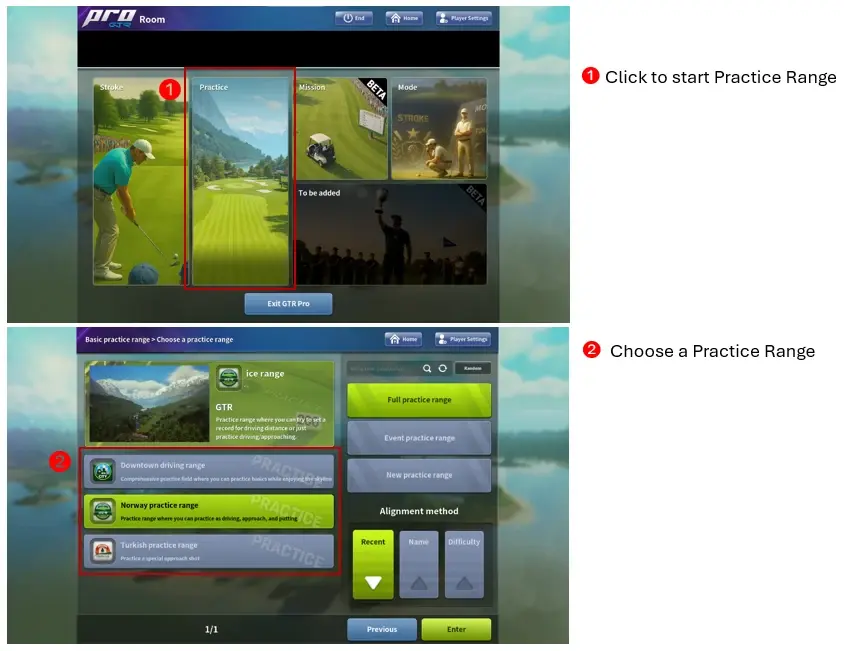
In the Room screen, click Practice, then choose a range — Downtown, Norway or Turkish — and click Enter.
- 07
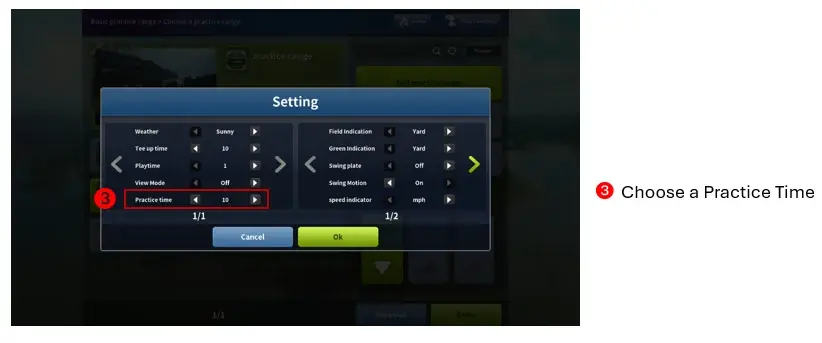
Set your practice time
Pick how long you want to practise and click Ok.
Stuck at the screen?
Call (437) 566-0505 during support hours (9:00 AM – 9:00 PM daily) and we will talk you through it. The bays themselves are open 24 hours.